---
title: Turn Mobile Data ON, turn Airplane Mode OFF
description: This information applies to both Premium SIM cards and older, Legacy SIM cards One of the first things you should do if your mobile network connection is is not working, is to check your Cellular Data
---
[Skip to content](https://help.freedompop.com/turn-mobile-data-on-turn-airplane-mode-off#main-content)
[Contact us](https://help.freedompop.com/kb-tickets/new?hsLang=en)
[![FreedomPop-Logo.png\]](https://help.freedompop.com/hs-fs/hubfs/FreedomPop-Logo.png?height=40&name=FreedomPop-Logo.png)](https://www.freedompop.com/)
Open main navigation
Close main navigation
- [Contact us](https://help.freedompop.com/kb-tickets/new)
- [FreedomPop Help](https://help.freedompop.com/)
[FreedomPop Help](https://help.freedompop.com/?hsLang=en)
How Can We Help You?
- There are no suggestions because the search field is empty.
1. [FreedomPop Help Center](https://help.freedompop.com/?hsLang=en)
2. [General](https://help.freedompop.com/general?hsLang=en)
# Turn Mobile Data ON, turn Airplane Mode OFF
**This information applies to both Premium SIM cards and older, Legacy SIM cards**
One of the first things you should do if your mobile network connection is is not working, is to check your Cellular Data and Airplane Mode settings. Because the Cellular Data function is usually included in your phone's quick settings section, it is easy to accidentally disable it.
**Disable Airplane Mode**
If Airplane Mode is ON, you will not be able to connect to the internet. To make sure your network connection is working, turn Airplane Mode off.
**Steps for Android phones**
**Step 1:** Tap on your phone's Settings application
**Step 2:** Tap on Connections, Network & Internet, Cellular or Mobile Data
(Different phones label this folder differently. If you do not see any relevant options tap on MORE, then look for Connections, Network & Internet, Cellular or Mobile Data)
**Step 3:** Switch the Airplane Mode toggle from ON to OFF
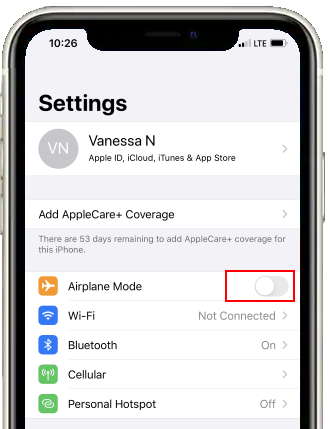
**Steps for iPhones**
**Step 1:** Tap on your phone's Settings application.
**Step 2:** Switch the Airplane Mode toggle from ON to OFF.
**Turn Cellular Data ON**
If you want to use your phone without connecting to WiFi, Cellular Data must be enabled.
**Steps for Android phones**
**Step 1:** Tap on your phone's Settings application
**Step 2:** Tap on Connections, Network & Internet, Cellular or Mobile Data
(Different phones label this folder differently. If you do not see any relevant options tap on MORE, then look for Connections, Network & Internet, Cellular or Mobile Data)
**Step 3:** Switch the Mobile Data toggle from OFF to ON
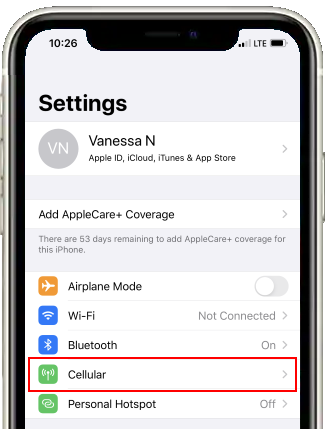
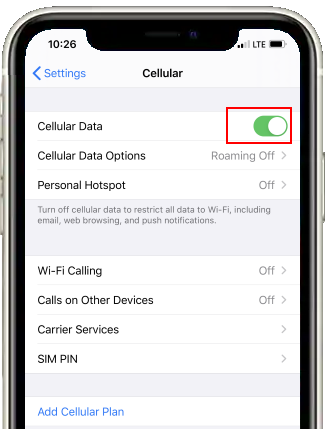
**Steps for iPhones**
**Step 1:** Tap on your phone's Settings application.
**Step 2:** Tap on Cellular.
**Step 3:** Switch the Cellular Data toggle from OFF to ON.
- [About FreedomPop](https://help.freedompop.com/about-freedompop?hsLang=en)
- [Getting started](https://help.freedompop.com/getting-started?hsLang=en)
- [General](https://help.freedompop.com/general?hsLang=en)
- [Account Management](https://help.freedompop.com/account-management?hsLang=en)
- [Troubleshooting](https://help.freedompop.com/troubleshooting?hsLang=en)
- [eSIM](https://help.freedompop.com/esim?hsLang=en)
- [Number Transfer](https://help.freedompop.com/number-transfer?hsLang=en)
- [Rebate](https://help.freedompop.com/rebate?hsLang=en)
Copyright © 2026, FreedomPop